Adobe Illustrator creates vector artwork that stays crisp from a business card to a shopfront sign. Its editable paths, type and colour settings suit logos, packaging, diagrams and other graphics that need several outputs from one master file.
For New Zealand freelancers and studios, the useful test is the handoff. Does a printer need separations- Will a client need an editable
.ai
master- Must the identity work on packaging as well as screens- Illustrator suits those jobs. For social templates or shared website mock-ups, a less specialised design tool may be quicker.
What Adobe Illustrator actually does
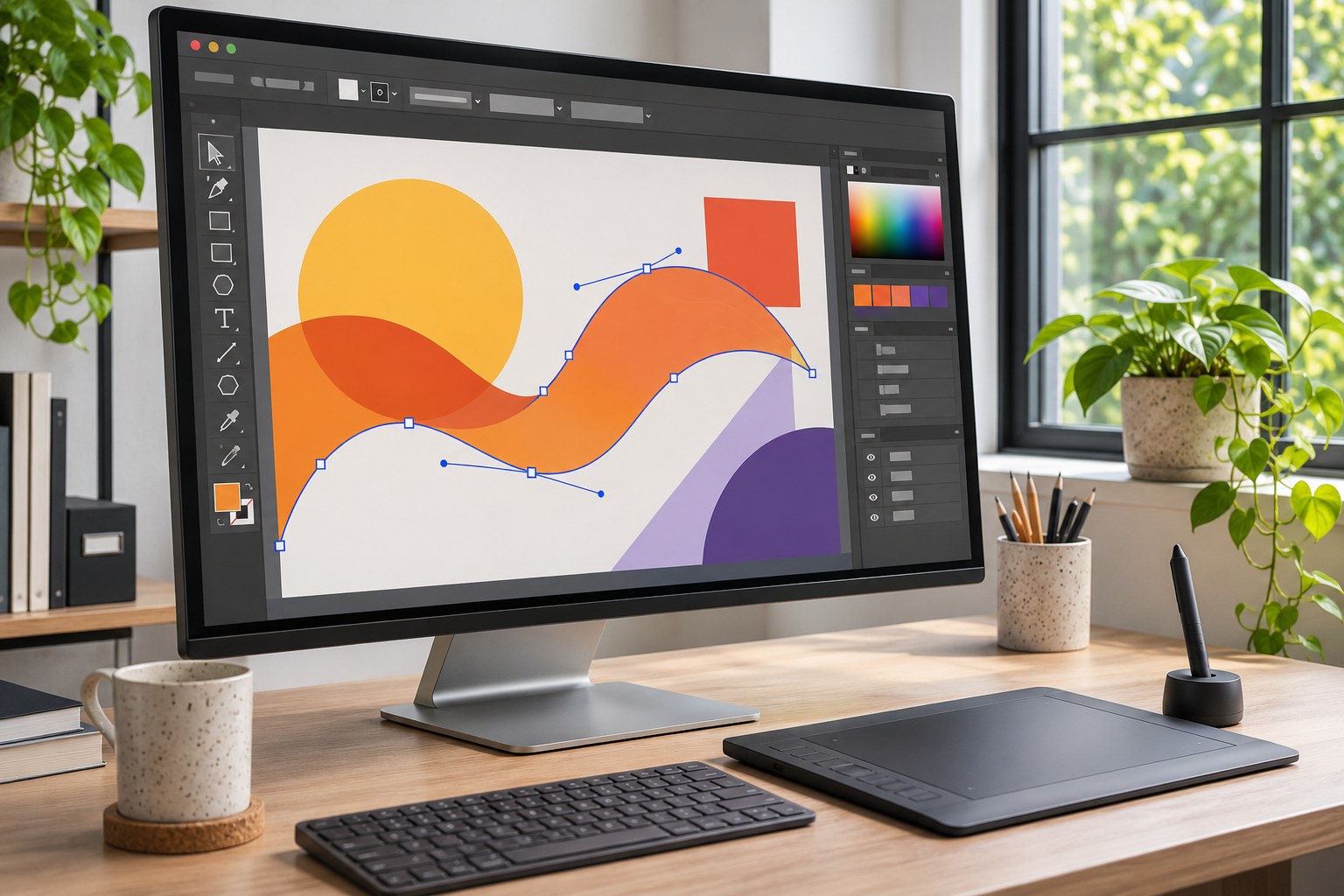
An Illustrator drawing consists of vector paths: anchor points joined by straight segments or Bézier curves, with fills and strokes applied to the shapes. Scale those paths up for a sign and the edges stay sharp. That is why Illustrator is used for logos, icons, maps, diagrams, lettering and flat illustrations.
Pixels still have their place. Adobe Photoshop is better suited to photographic retouching, painted textures and compositing. Illustrator can place or mask raster images, but enlarging a small JPEG will not restore detail. For long, multipage publications, Adobe InDesign handles page assembly more comfortably; the illustrations can still come from Illustrator.
An editable vector logo lets you adjust a curve, stroke or colour directly. The same design saved only as a PNG is a grid of pixels. It may look fine on screen, yet leave the next designer with nothing to edit.
Where Illustrator delivers the most value
| Project | Why Illustrator fits | Likely handoff |
|---|---|---|
| Brand identity and logo systems | Controlled curves, custom lettering, consistent colours and multiple lock-ups | Editable AI plus SVG, PDF and PNG versions |
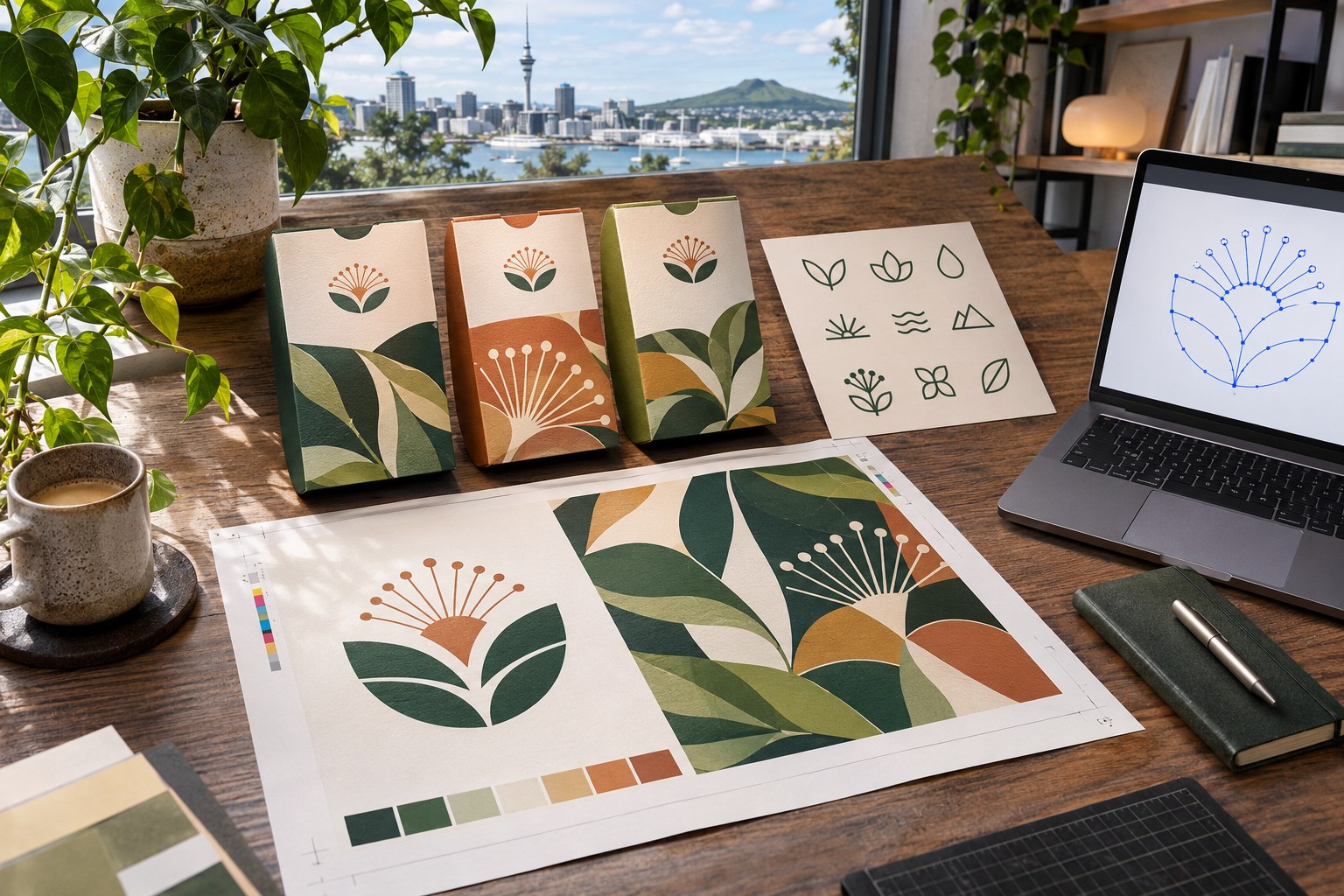
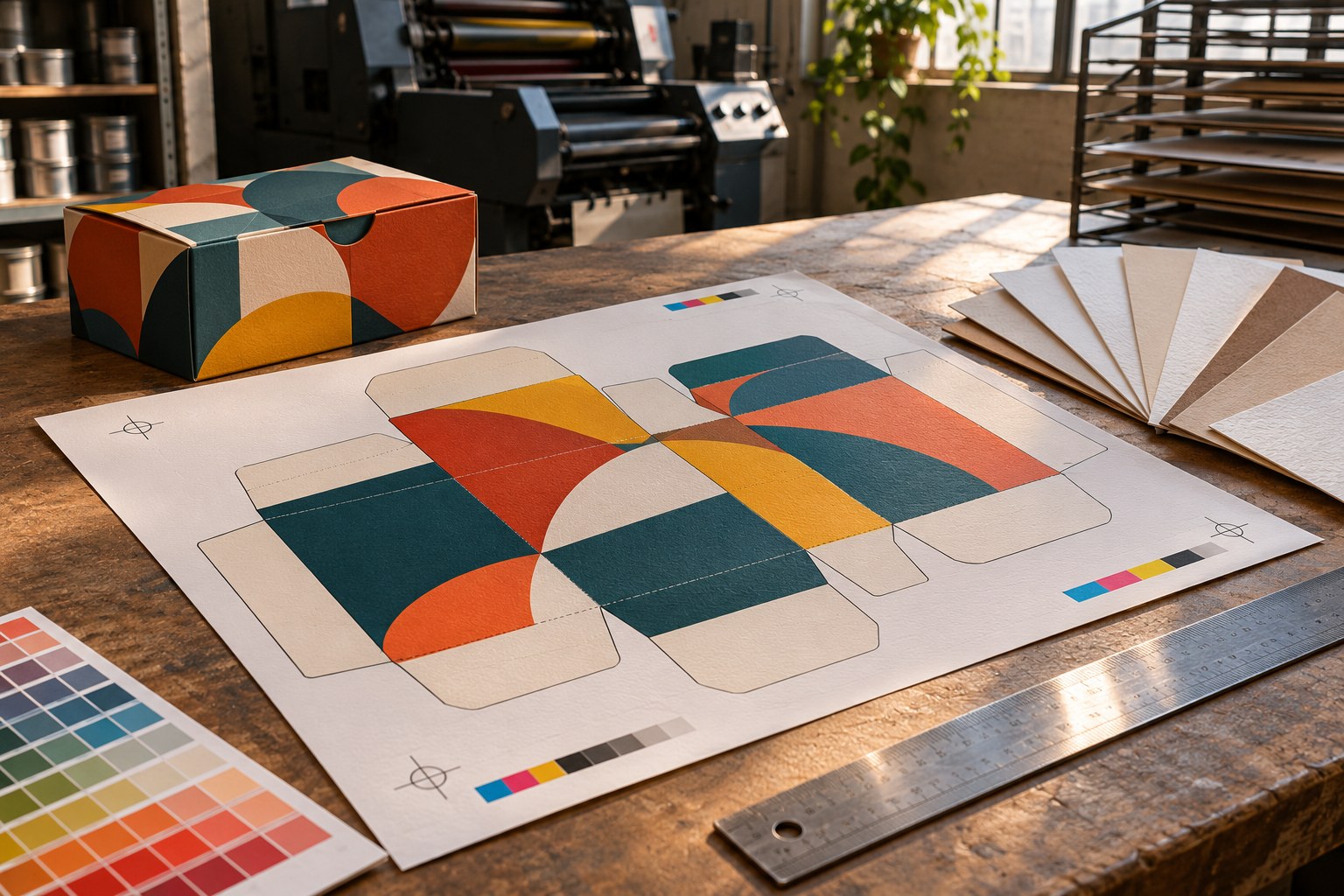
| Labels and product packaging | Accurate dimensions, spot colours, dielines and print artwork | Printer-approved PDF or packaged production files |
| Icons and interface assets | Small shapes, consistent stroke weights and repeatable exports | Optimised SVG, PNG or WebP assets |
| Posters, infographics and diagrams | Fine-grained layout, charts, symbols and typography | Print-ready PDF or screen graphics |
| Apparel, signage and vehicle graphics | Scalable outlines, clean contours and production-friendly artwork | Vector PDF, AI or a supplier-specified format |
| Editorial or character illustration | Pen and brush tools, gradients, patterns and layer-based drawing | AI master, PDF, SVG or raster exports |
Picture an Auckland café changing its branding. Its mark has to work on takeaway cups, menu boards, Instagram and embroidered uniforms. One carefully built vector master can feed those different production processes; four unrelated redraws are harder to keep consistent.
The tools that matter in everyday work
Drawing paths and building shapes
With the Pen tool , you place anchor points and adjust curve handles. The Curvature tool draws smooth paths with fewer manual adjustments; Pencil and Blob Brush feel more freehand. Use Direct Selection to correct a single point rather than rebuilding the shape.
Shape Builder and Pathfinder join, cut and subtract rectangles, ellipses and other forms. They are handy for constructing logos from simple geometry. Compound paths create holes, clipping masks hide unwanted areas, and the Appearance panel lets one path carry several fills, strokes or effects.
Smart articles, snapping, alignment and the Transform panel keep measurements exact. Artboards let a designer compare the horizontal, stacked and monochrome versions of a logo side by side. Those checks matter when an icon must match a grid or artwork must fit a manufacturer's dimensions.
Typography, colour and visual consistency
Illustrator's Type tool covers ordinary text; Type on a Path, OpenType options, variable fonts and character styles give more control over wordmarks and labels. Retype can identify lettering in a placed image. The Dimension tool adds measurement annotations. Outlining text avoids font-substitution problems in a supplied print file, but the words then become shapes. Keep a live-text
.ai
master.
For Māori names, inspect macrons rather than assuming the font supports them. The characters ā, ē, ī, ō and ū need to render correctly in regular, bold and italic styles. Check the final PDF too: font substitutions can appear only after export.
Global colours and swatches help control brand palettes; gradients, the Mesh tool, opacity and blending modes handle more complex shading. Recolour Artwork makes palette changes quicker. Symbols, patterns, repeat options and graphic styles are useful when several assets share motifs or effects. A tidy layer structure still matters more than adding another effect.
Image Trace and asset preparation
Image Trace converts bitmap content into paths. A crisp black-and-white sketch gives it a better chance than a compressed photograph. Inspect the result closely: rough corners, background fragments and hundreds of extra anchor points can make a traced logo difficult to edit, embroider or cut.
Choose Expand when the trace is ready to become editable grouped paths; the original tracing controls no longer apply to those expanded shapes. Simplify reduces unnecessary points, though production contours may still need manual cleanup. Changing a JPEG filename to SVG does not turn pixels into vectors.
A workflow that holds up beyond the designer's screen
Start with the destination, not the drawing tools. A website icon, embroidered badge and die-cut label may share a design but need different line weights, dimensions and files.
- Define the intended outputs. Record finished dimensions, digital or print use, colour requirements, minimum line width, fonts and the supplier's accepted file formats. Confirm whether the client needs to edit the artwork later.
- Build clean master artwork. Use meaningful layers and artboard names, sensible path construction, editable text and linked or embedded images that are accounted for. Test recognisability at the smallest intended size before adding fine details.
-
Prepare separate production versions.
Preserve the original
.aidocument. Create screen assets in RGB and print deliverables using the printer's colour settings, bleed and PDF specification. Avoid flattening or outlining the only editable copy. - Validate the exported result. Reopen the PDF or SVG, check that text, transparency and gradients survived, inspect dimensions and linked content, and ask for a physical proof when brand colours or finishing details are critical.
A transparent PNG is a common problem for signwriters: it works online, yet provides neither clean cutting paths nor enough detail for enlargement. Delivering a vector master avoids paying someone to reconstruct the artwork.
File formats: which one belongs in the final package-
Illustrator handles many formats , but opening, saving, placing and exporting are different operations. Effects may change on import; an export may rasterise artwork, flatten transparency or lose editable settings. Keep the native file and inspect the output, not just the Illustrator canvas.
| Format | Best use | Important limitation |
|---|---|---|
AI
/
AIT
|
Editable Illustrator master and reusable templates | Other apps may not preserve Illustrator-specific features |
SVG
|
Responsive web logos, icons and interface graphics | Fonts, effects and clipping behaviour need browser testing |
PDF
|
Review, print production and broad file exchange | Editing capability and press-readiness depend on export settings |
EPS
|
Legacy vector and production workflows | Less suitable for complex modern transparency |
PNG
|
Transparent raster graphics and social assets | Fixed pixel dimensions; no editable vector paths |
JPEG
/
WebP
|
Compressed screen images and previews | Raster files; JPEG does not preserve transparency |
PSD
|
Passing suitable layered artwork to Photoshop | Some vector appearance details may change in conversion |
Export for Screens can produce several artboards and scale variants in one run. For a website, an SVG with sensible
viewBox
dimensions is useful when the logo needs to resize; social graphics often need a PNG or JPEG at a defined pixel size. Clients generally benefit from a vector master plus ready-to-use raster copies.
Preparing Illustrator artwork for printing in New Zealand
For commercial print in New Zealand, expect the supplier to specify a press-ready PDF, colour mode, font handling and image resolution. Standard trimmed jobs often call for 3 mm bleed and a 3 - 5 mm safe area inside the trim. Those are common supplier specifications, not Illustrator defaults. Labels, packaging, banners and finishing processes can require something else.
An A4 page trims to 210 × 297 mm . With 3 mm bleed on every edge, the artwork extends to 216 × 303 mm . The PDF must still carry the correct trim and bleed information. Depending on the printer, the job may require PDF/X-1a, PDF/X-4, crop marks or an approved dieline.
Screen colour is not press colour. A vivid RGB blue may reproduce duller in CMYK; brand jobs may instead specify Pantone or another spot-colour reference. White ink, foil and varnish can require separate spot-colour artwork. For small black type, printers often prefer 100% K to a rich-black mix: misregistration across four inks makes fine letters look soft.
Vector edges stay crisp; placed photographs do not gain resolution by sitting inside Illustrator. 300 dpi at final size is a common starting point for close-viewed print, while large-format requirements vary with viewing distance. Check the exported proof for margins, barcodes, QR codes, overprint, transparency, spelling, macrons and broken links.
Illustrator AI: Faster Drafts, Final Review Still Needed
Illustrator pairs traditional tools with generative features. Text to Vector Graphic can suggest scenes, subjects and icons. Text to Pattern creates repeatable decoration; Generative Shape Fill adds detail inside a shape; Generative Recolour tests palettes; and Generative Expand extends a composition. Concept to Vector develops editable directions from sketches or raster references, while Prompt to Edit changes generated elements through instructions.
Turntable offers multiple rotated views of artwork for exploration or presentation; it is not a substitute for a full 3D manufacturing model. Illustrator also has 3D and Materials effects, blends, gradients and pattern controls that do not depend on prompting.
Generated artwork is still artwork someone has to prepare. Look for uneven paths, weak legibility at small sizes, unintended repeats and shapes that will fail during vinyl cutting, screen printing or embroidery. Trademark similarity and colour separations also need review. A promising concept is not automatically a usable production file.
Generative credits and feature availability vary across plans and models. Adobe Firefly and third-party partner models may have different allowances; individual tools can also carry beta or regional restrictions. The applicable credit balance, model terms and commercial-use conditions matter before relying on an AI feature for a recurring job.
Desktop, iPad, web beta and Creative Cloud
Desktop Illustrator runs on supported versions of Windows and macOS. Adobe lists 8 GB RAM minimum and 16 GB recommended for the desktop application; operating-system support, GPU features and disk space need checking against the installed release. Large artboard collections, dense patterns and linked files demand more headroom.
On an iPad, Illustrator supports touch and Apple Pencil for drawing and selected editing work. Illustrator on the web (beta) offers browser-based editing and collaboration, but does not replicate every desktop function. Complex print output, specialist plugins and large production documents still call for a tested desktop workflow.
Creative Cloud Libraries can hold shared assets, while Adobe Fonts, Adobe Stock and cloud documents support connected projects. Photoshop handles raster work, InDesign assembles multipage layouts, Adobe Express speeds up templates and Adobe After Effects handles motion. Check linked images before delivery: a link can break when the source moves, whereas an embedded image travels with the document. Font availability needs its own check.
Adobe Illustrator pricing in New Zealand
Adobe's New Zealand plan listing showed NZ$44.51 a month including GST for an individual Illustrator subscription on an annual commitment billed monthly , checked in November 2026. Twelve payments at that displayed rate equal NZ$534.12 . Prices and eligibility can change, and Creative Cloud bundles cost differently; US-dollar comparisons do not capture the local NZD checkout price.
Annual, billed monthly describes a contract, not unrestricted monthly cancellation. Adobe's subscription terms describe a refund window and an early-termination charge for certain annual plans cancelled later. A true month-to-month plan, prepaid annual plan, student offer or team licence can have different conditions. Read the specific checkout terms before comparing monthly figures.
A daily Illustrator user may recover the subscription cost through fewer file conversions and easier production handoffs. Someone editing two icons every few months may not. Where a trial is offered, its eligibility, end date and cancellation terms are part of the cost calculation.
Illustrator versus other design tools
| Tool | Strongest fit | Trade-off against Illustrator |
|---|---|---|
| Affinity by Canva | Vector, pixel and page-layout work in one free desktop app | Native AI handoff and Illustrator-only effects may require conversion checks |
| Inkscape | Free, open-source SVG artwork, logos and diagrams on Windows, macOS or Linux | AI file compatibility and specialist print workflows need testing |
| CorelDRAW Graphics Suite | Vector graphics, signage, production layout and print workflows | Different native files, tool conventions and licensing choices |
| Figma | Collaborative interface design, components, prototyping and handoff | Not a direct replacement for Illustrator's prepress and packaging workflow |
| Canva | Quick presentations, social campaigns and brand templates | Less control over intricate vector construction and supplier-ready artwork |
| Linearity Curve | Illustration and vector work in Apple-centred workflows | Platform and file-interchange constraints may matter for mixed teams |
Affinity by Canva now combines vector, pixel and layout work in a free application linked to a Canva account; old Affinity Designer comparisons may describe a different purchase model. Inkscape is attractive for open SVG workflows. Figma is more practical for teams co-editing interface screens and components. None of those distinctions guarantees a flawless
.ai
round-trip.
A compatibility test needs a real project. Import an AI file containing live text, clipping masks, gradients, linked images and multiple artboards. Change it, export the format your client needs, then reopen the result. A near-perfect visual match does not prove the file is still fully editable.
Less obvious costs and limitations
Ownership is not edit access.
A client may own the artwork but lack software for its
.ai
master. Supply the native document alongside a readable PDF, a suitable SVG and correctly sized PNGs when the job calls for them. Software licensing and rights to the artwork are separate issues.
Check asset licences. Sending an editable file does not automatically grant permission to redistribute a paid font, Adobe Stock image or marketplace illustration. Record what can be transferred, and use outlined text or properly licensed substitutes where necessary.
Allow for learning time. The Pen tool, colour management and prepress controls take practice. A simple social tile rarely needs that overhead. Repeatable templates and a few well-chosen tutorials are more useful than learning every panel before completing a job.
Test outside Illustrator. Transparency, live effects, traced paths and fonts can change in PDF or SVG exports. Keep an editable master; reopen delivered files in the software that will actually use them. Retain an approved proof for reprints.
Common questions about Adobe Illustrator
Is Adobe Illustrator free in New Zealand?
Illustrator has no permanently free full desktop licence; it is sold through subscriptions. Trials and student offers have separate eligibility rules. Affinity by Canva and Inkscape are free alternatives, though their file compatibility and tools differ.
Can Illustrator be used without an internet connection?
The installed desktop application can draw and edit offline. Initial activation, periodic licence checks, cloud sync and online AI or collaboration features still require internet access.
When Illustrator is the right investment
Illustrator makes sense when editable vector artwork, precise dimensions and dependable production handoffs matter. For a New Zealand brand moving between signage, packaging and digital channels, the printer, developer and client each need a usable file - not just a sharp-looking preview. Template-led work and shared interface design often call for different software.